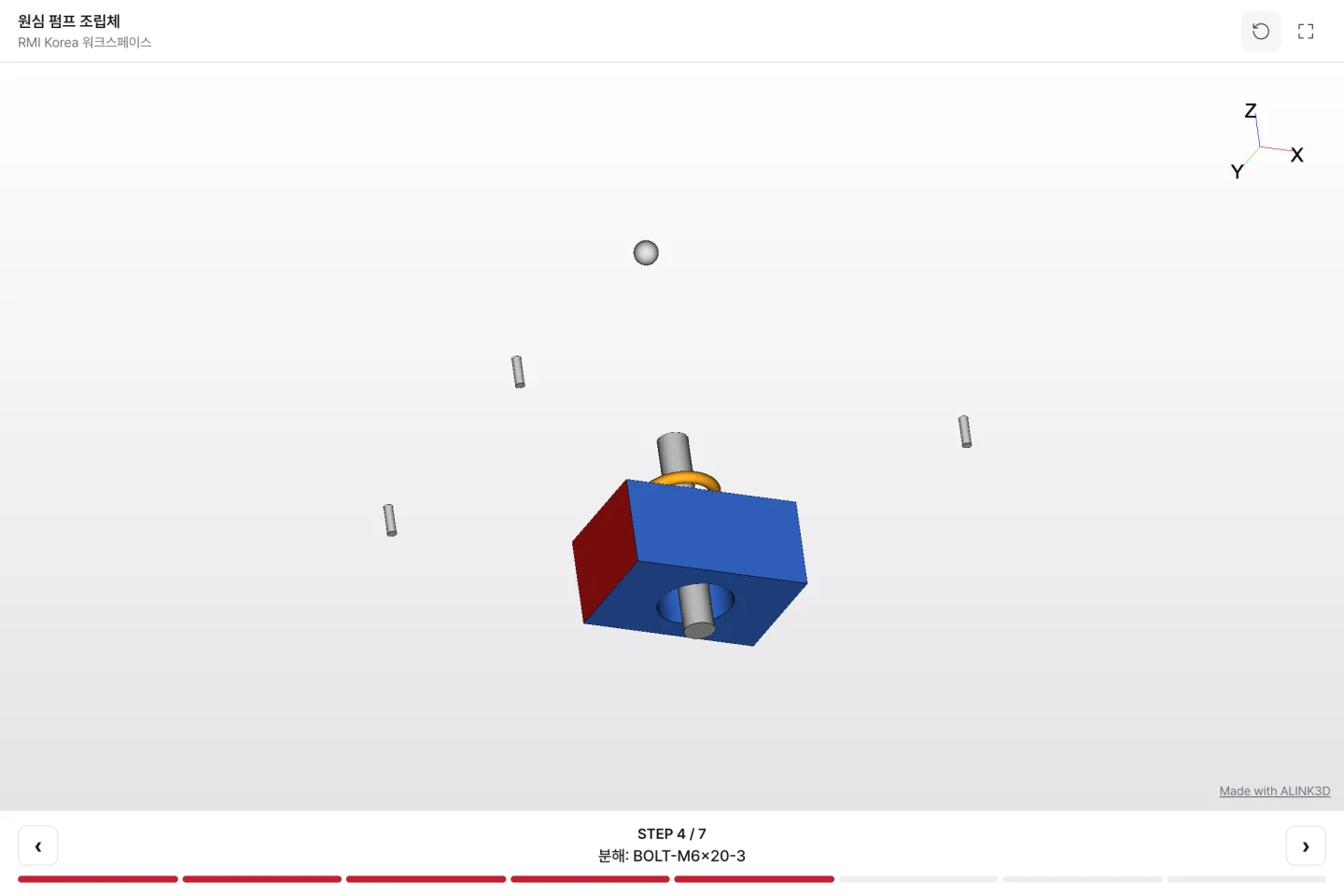
To explain an assembly or maintenance sequence, people usually make a PDF full of screenshots. With an explode animation, recipients can rotate the model themselves and go through it one step at a time.
1. Start with the explode template
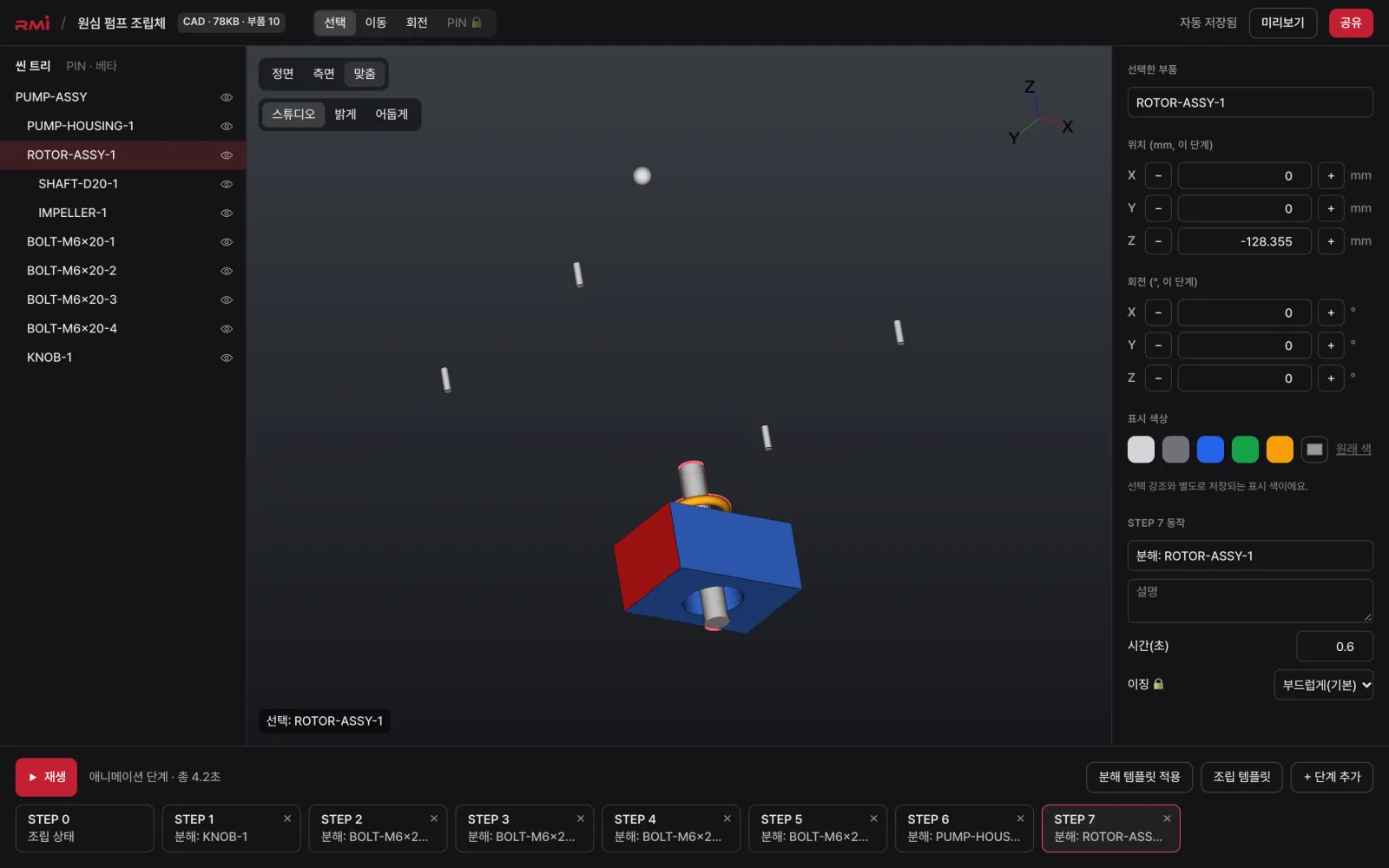
In the step timeline at the bottom of the 3D editor (on a computer), click Apply explode template. It creates an animation in which the parts directly under the assembly move outward one step at a time. Parts farthest from the model's center move first, for up to 8 steps.
If you need the opposite — parts returning to their places one by one — use the Assembly template.
2. Fine-tune the steps
- Click a step card to go to that step, select a part, and adjust its position (mm) and rotation in the properties panel on the right. You can also move it with the arrow keys.
- Give each step a name and description — they appear with the step controls on the share link. For example: "1. Remove the 4 cover bolts".
- Delete steps you don't need, and drag cards to reorder them.
3. Highlight the parts that matter
Recoloring replacement parts or parts that need attention makes them easy to spot. Select a part, then pick a color preset in the properties panel or enter one yourself. Hide parts that get in the way with the eye icon in the scene tree.
4. Send it as a link
Click Share in the editor and copy the link. Recipients can step through it with the previous and next buttons in their browser without signing in — on phones, too. For visibility and passwords, see Visibility and password settings.
To put it straight onto a product page, see Embed the 3D viewer on your website (Pro and above).