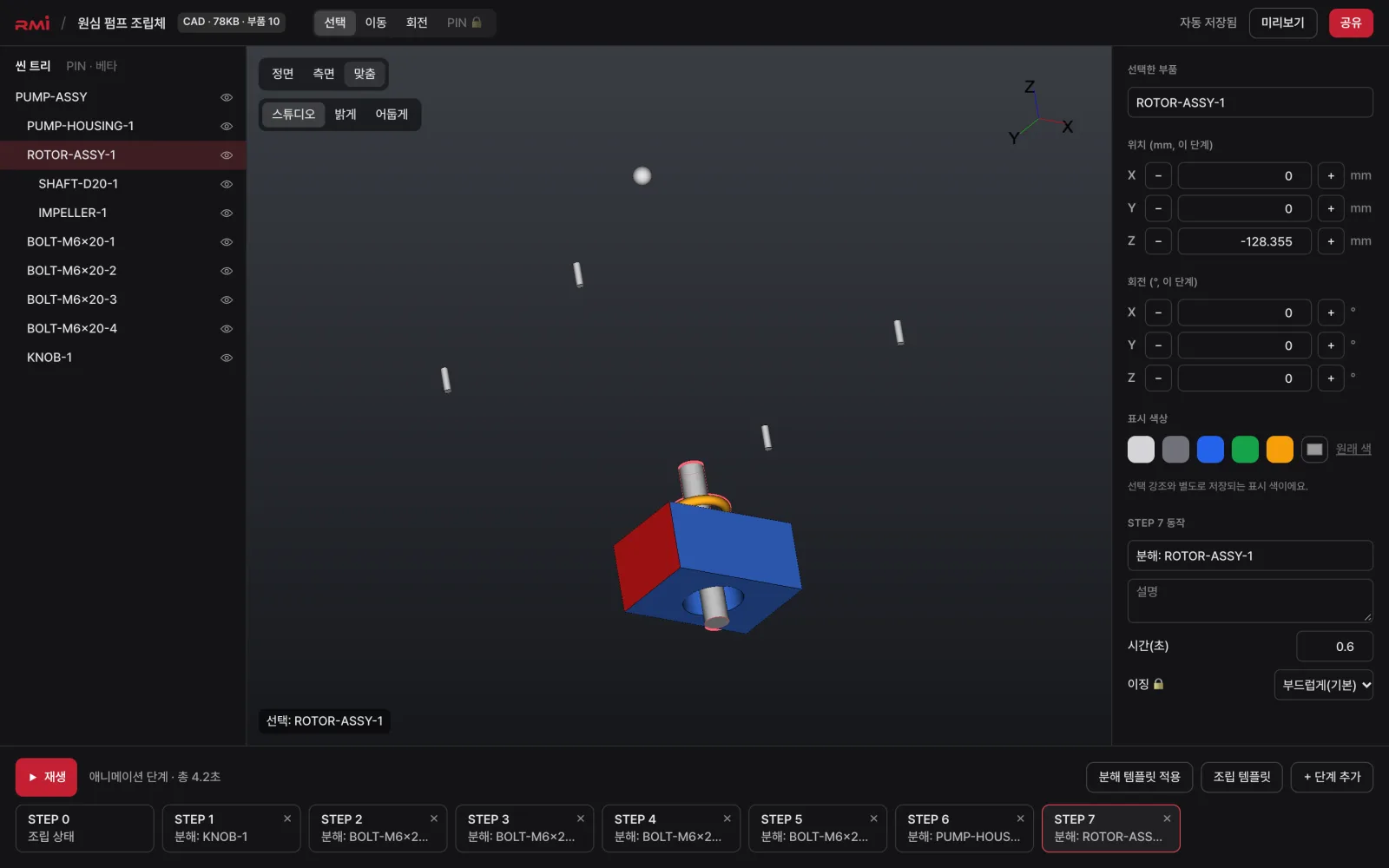
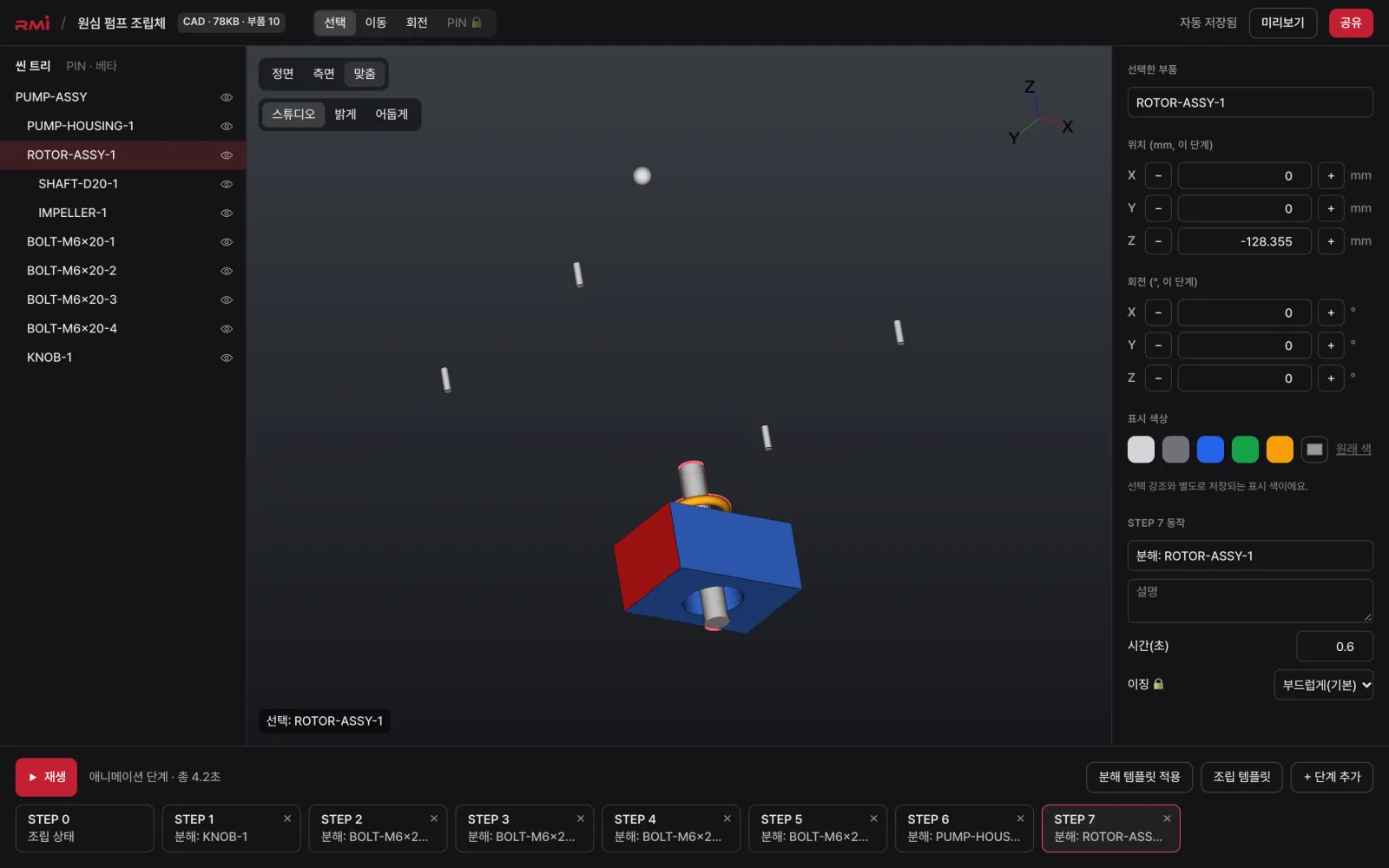
A STEP file used for design holds all of its precise surface data, so it's heavy to send to customers or put on a website, and it needs dedicated software to open. Converting to web 3D keeps the shape and part structure that matter for viewing, and drops the rest.
Why CAD files are heavy
CAD stores curved surfaces as mathematical formulas, while browsers can only draw meshes made of triangles. To show a model on the web, its surfaces have to be turned into triangles — and how finely you make those triangles decides both the file size and the visual quality.
Design files also carry information that doesn't need to be on screen (tolerances, feature history, manufacturing data and so on). The more of it you leave out when publishing to the web, the lighter and safer the result.
The 4 steps of conversion
When you upload a STEP file to ALINK3D, the conversion screen shows these steps in order.
- Upload — the file is uploaded in 8MB chunks, and the beginning of the file is checked to confirm it's really STEP.
- Assembly analysis — parts and sub-assemblies are read as a tree. The editor's scene tree is built from this exact structure.
- Mesh optimization · XVL Web3D — surfaces are turned into triangles, then packed and compressed into a format browsers read quickly.
- GLB export — a GLB file is also created so you can use the model in other 3D tools.
Choosing an optimization level
When you create a new project, you choose one of three levels.
| Level | When to use |
|---|---|
| Standard (recommended) | Most cases |
| High-quality curves | Many curved surfaces that will be viewed up close |
| Lightest (mobile) | Very many parts, or mostly viewed on phones |
What stays and what goes
- What stays: shape, assembly tree and part names. In the editor you can select, hide and recolor parts.
- What goes: mathematical surfaces, feature history, and design data such as dimensions and tolerances. People who receive a share link can't download the original CAD file.
Try it yourself
- Sign up free and get trial credits.
- On the dashboard, choose New project → Convert CAD file and upload a STEP file.
- When the conversion is done, click Share in the editor and send the link.
For a step-by-step guide, see Create your first project in 5 minutes in the help center.